
Smartcard Logon Guide
This document describes how to configure smartcard login for a domain using Jellyfish smartcards and certificates. Jellyfish is used to issue all certificates required for smartcard-based authentication, including those for domain controllers and administrative operator accounts.
This document includes the steps required to issue smartcards with appropriate certificates, configure domain controllers for certificate-based authentication, and ensure client systems can perform smartcard logon using Active Directory-integrated credentials.
Note: Enforcing smartcard login introduces a risk of administrative lockout due to expired certificates or other authentication issues. It is recommended that when using smartcard-based logon to maintain break-glass (emergency access) or elevated administration accounts with password-based authentication.
Smartcard Configuration in Jellyfish
You can issue your Smartcard Jellyfish but first you need to configure your smartcard and load your smartcard applet.
Smartcard Applet & Configuration
A smartcard applet is a small program that lives on a smartcard.
In the Jellyfish web portal, from the left menu navigate to Configuration > Smartcard Configuration. On the Smartcard Applets tab, click + Add Applet. This opens a window where you can upload your applet. Upload the applet’s .cap file, which is the compiled Java Card package used for loading the applet onto the smartcard.

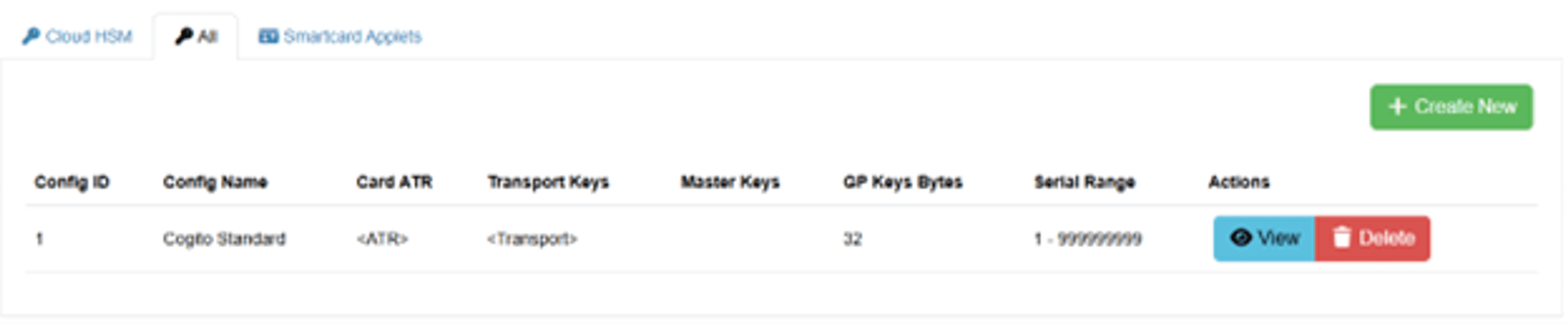
Now create the smartcard configuration. On the All tab, click + Create New. Add a config name e.g., Cogito Standard.
Enter the smartcard’s ATR (Answer To Reset), the hexadecimal identifier the card sends on reset; this value must match the ATR of the card type you are configuring. The ATR can be retrieved using a smartcard reader utility (e.g., certutil -scinfo or PC/SC diagnostic tools).
From the Smartcard Applet dropdown, select the applet configured earlier. When finished, click Create.
Jellyfish Smartcard Template and Licensed Template
In Jellyfish you need a provisioned licensed template and a smartcard template for the smartcard. The licensed template must be associated with the smartcard template. Contact your Jellyfish administrator to configure this association.
Key Usages Requirements:
- Digital Signature: 2.5.29.15
Extended Key Usage Requirements:
- Smart Card Logon: 1.3.6.1.4.1.311.20.2.2
- Client Authentication: 1.3.6.1.5.5.7.3.2
Smartcard Issuance
To issue a smartcard in Jellyfish, you need a registered user with a username that matches the logon domain (e.g., first.last@domain). This username is used to generate the User Principal Name (UPN) for the smartcard.
In the Jellyfish web portal, from the left menu navigate to Credential Management > Smartcard > Manage Smartcards. On this page, connected smartcard readers will populate onto the page. Insert a blank smartcard and ‘Register’, ‘Issue to Me’, and ‘View’ button will appear. Click Register to register the card. After registration, click Issue and select the registered domain user. Select the smartcard template and click Issue Smartcard.
This will issue a certificate for the smartcard associated with the user. This certificate is used to authenticate the user during smartcard logon. Because the certificate contains a UPN derived from the Jellyfish username, Windows can automatically map the certificate to the AD account without explicit certificate mapping.
On the user’s account page, you can view the Assigned Smartcards and their Card Certificates to inspect the certificate.
Set the smartcard PIN using the Change Pin or Reset Pin. The PIN is used to authenticate the user using the smartcard.
DC Configuration
During smartcard logon, the Domain Controller validates the user’s smartcard certificate, checks its trust chain, and uses Kerberos to issue a ticket granting access to the domain.
The DC must trust the issuing Certification Authority (CA) used by Jellyfish for smartcard authentication.
Certificate Trust via certlm
The certificate chain of the issued smartcard certificate must be installed in the DC’s Trusted Root Certification Authorities store via certlm. This includes:
- The issuing CA certificate
- Any intermediate CA certificates
- The root CA certificate
Configure NTAuth Certificate Store on the Domain Controller
Publish the CA’s certificate to the NTAuthCertificates container in Active Directory.
Step 1: Add Certificate to NTAuth
The complete certificate chain (typically the issuing CA and root CA) should be added to the NTAuth store.
Run the following command in an elevated PowerShell session:
certutil -dspublish -f <CertificateFile>.cer NTAuthCA
Step 2: View Certificates in NTAuth
- Open ADSI Edit:
Press Win + R, type adsiedit.msc, and press Enter.
- In the ADSI Edit window:
- Right-click ADSI Edit in the left-hand pane.
- Select Connect to...
- In the Connection Settings window:
For Select a well-known Naming Context, choose: Configuration
- Click OK.
- Navigate to the NTAuth container:
Configuration > CN=Services > CN=Public Key Services > CN=NTAuthCertificates
- Right-click CN=NTAuthCertificates and select Properties or simply double-click it.
- Inspect the cACertificate attribute:
- This contains the list of CA certificates trusted for authentication (e.g., smartcard logon)
- Certificates are stored in binary (hex) format
Testing Certificate Trust on the Domain Controller
- Insert the smartcard into a reader
- Open an elevated PowerShell session
- Run: certutil -scinfo
- Enter the PIN when prompted (or click Cancel)
- Review the output for any certificate trust issues
KDC Certificate (Domain Controller Certificate)
The DC must have a valid KDC certificate installed. In Jellyfish, you will need to license a certificate template that includes the KDC Authentication EKU (1.3.6.1.5.2.3.5).
From the Jellyfish web portal, register the DC as a device. From there, issue a device certificate for the DC with the KDC certificate template.
Certificate Requirements:
Subject:
- Common Name: Fully Qualified Domain Name (FQDN) (e.g., host01.domain.com)
Subject Alternative Name (SAN):
- FQDN (e.g., host01.domain.com)
- Hostname (e.g., host01)
Key Usage:
- Digital Signature
- Key Encipherment
Extended Key Usage:
- Server Authentication
- Client Authentication
- KDC Authentication (1.3.6.1.5.2.3.5)
- Smart Card Logon
Export the certificate as a PKCS#12 (.pfx) file and install it using the certificate wizard on the local machine. It should be placed in the Personal store in certlm.