
How to request Soft Certificates for other users
This guide explains how to request and download a document signing certificate for another person (such as an employee or colleague) using the Jellyfish portal.
Who is this for?
This guide is for Certificate Managers whose identity has already been verified.
Prerequisites:
- You have activated your Jellyfish account.
- You have completed your identity verification with a registration officer.
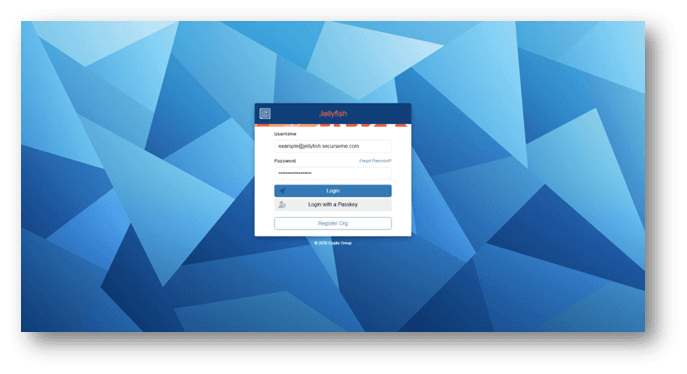
1. Login to the Jellyfish Soft Certificate Portal
- Open your web browser and go to: https://jellyfish.securesme.com/login
- Enter your Username and Password to log in
2. Access the Management Dashboard
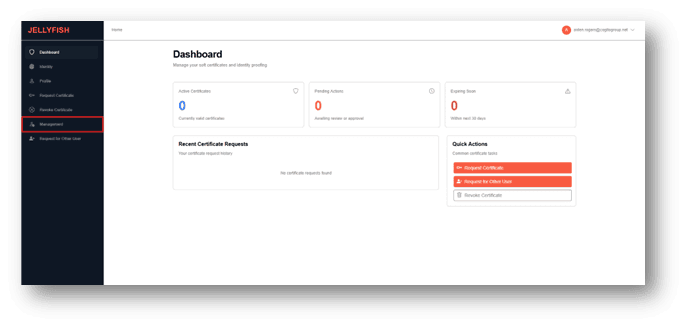
- Once logged in, you will see the Certificate Manager Dashboard.
- Look at the menu on the left-hand side of the screen.
- Click on the Management link or navigate there directly at Jellyfish Management
3. Invite the User (If they are new)
If the user is already in the system, skip to Step 4.
Before you can issue a certificate, the user must exist in the system.
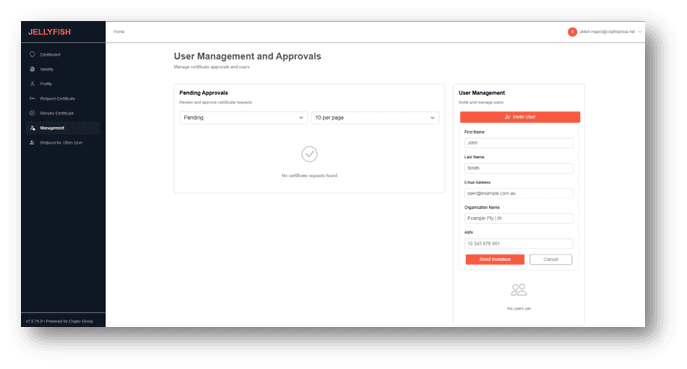
1. On the Management page, look for the User Management panel.
2. Enter the name and email of the person you want to invite.
3. Click Send Invitation.
⚠️ CRITICAL FOR PEXA USERS
If this certificate will be used for PEXA, you must enter the Organisation details exactly as they appear on the Australian Business Register:
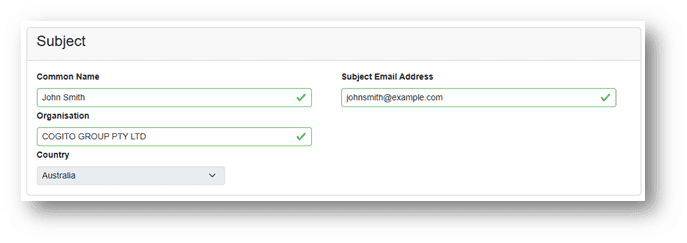
Organisation Name: Must match exactly (e.g., COGITO GROUP PTY LTD)
ABN: Must contain NO spaces (e.g., 20151795998)
Once the user has been invited, they can log in and follow the certificate request process outlined at Requesting Soft Certificates | Knowledge Base | Jellyfish.
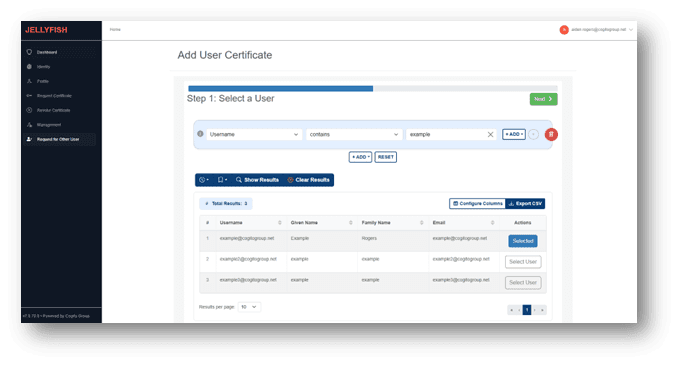
Otherwise, a certificate manager can issue a Certificate on behalf of the user. To do this, click on “Request for Other User” in the side navigation menu or navigate to Add User Certificate | Jellyfish page and search for the user you wish to issue a Certificate on behalf of.
4. Start the Certificate Request
- Use the search bar to find the user you just invited.
- Click on their name to select them.
- Click Next.
5. Select Lifespan
Select how long you want the certificate to be valid (e.g., 1 year, 2 years).
Note: Pricing varies based on the lifespan selected. Prices can be found here.
6. Enter Certificate Details
Fill in the form with the user's information.
For PEXA users, you must follow these rules:
- Common name: must be the first and last name of the user that the certificate is for.
- Subject email address: must be the email address of the user that the certificate is for.
- Organisation: Must match the Australian Business Register’s organisation name exactly.
7. Finalise Security Settings
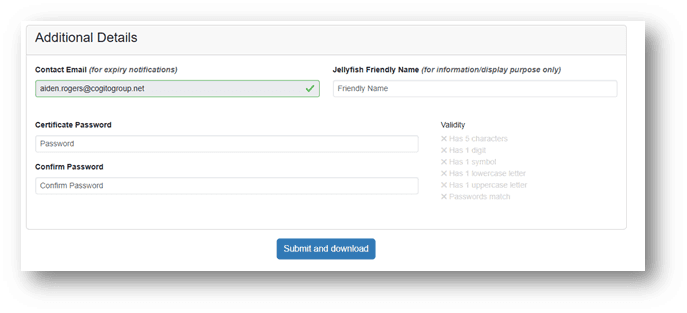
Scroll down to the "Additional Details" section.
1. Friendly Name: Type a name that makes the file easy to identify (e.g., "John Smith Certificate 2024").
2. Password (Crucial): Create a password for this certificate.
WRITE THIS DOWN. You must give this password to the user, or they will not be able to use the certificate.
3. Algorithm Options: Leave these as the default settings (recommended).
4. Click Submit.
8. REQUIRED - Download the private key
🛑 STOP! READ CAREFULLY.
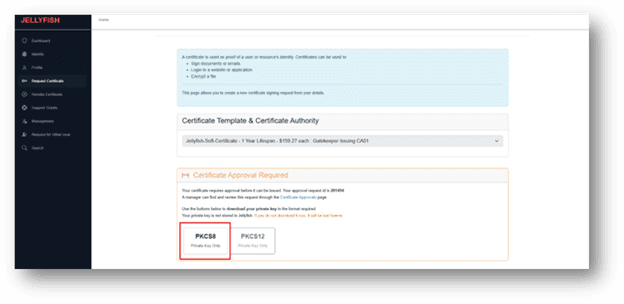
Once you click submit, you will see the Certificate Download page.
- Click PKCS8 (Private Key Only)
⚠️ WARNING
You MUST download the file now. For security reasons, Jellyfish does not store the private key. If you leave this page without downloading the PKCS12 file, it is lost forever, and you will have to pay for a new one.
9. Approving the Certificate
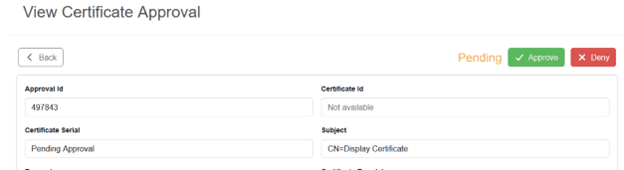
Once the certificate request has been sent, all requests must be approved by a Certificate Manager. The Certificate Manager can find all certificate requests in the management dashboard. Clicking on the request will open the View Certificate Approval Page.
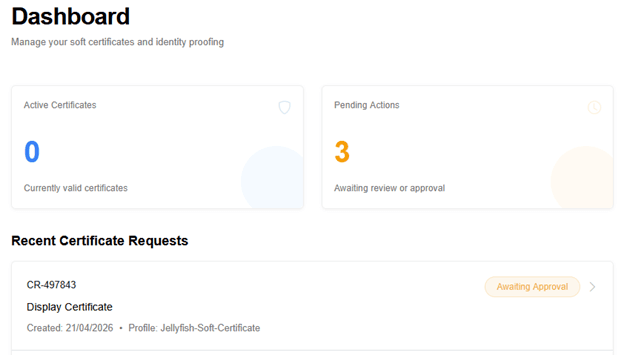
From here they can select the certificate request and either approve or deny the request.
10. Collecting the Certificate
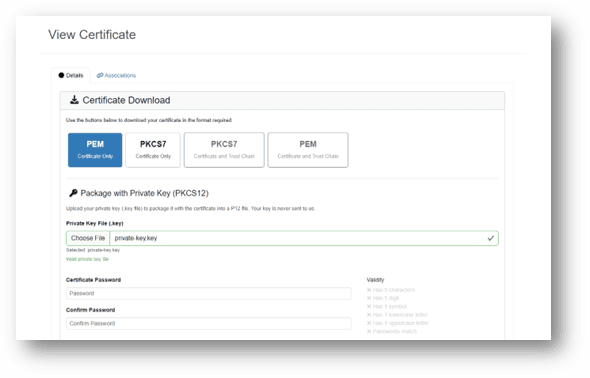
Upload the private key that you downloaded in step 8 and optionally enter a password.
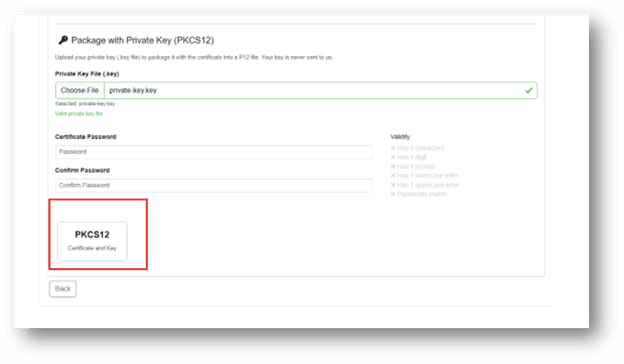
Scroll down and download your PKCS12 file.
11. Send to User
Congratulations! You have successfully issued the certificate.
Next Steps:
- Locate the downloaded file on your computer.
- Send the file AND the password (from Step 7) to the user.
- Security Tip: It is best to send the file via email and the password via a different method (like a text message or Teams chat) to keep it secure.